Wednesday, 12 September 2018

Operators In JAVA ( Part 1 )


Definition


" Operators are the symbols which perform some operation on operands. "


" Expression is any valid combination of operators, constants and variables. "


Before, Start Lets understand two small concept - 
  1. Precedence Level
  2. Associativity Rule
(For more Information - Click Here (Redirect to some other Page) )

# Precedence and Associativity

When expressions contain more than one operator, the order in which the operators are evaluated depends on their precedence levels. A higher precedence operator is evaluated before a lower precedence operator. If the precedence levels of operators are the same, then the order of evaluation depends on their associativity (or, grouping). 


Types of operators

There are two types of operators

     a) On the basis of type of operands 
              1- Unary operator
              2- Binary operator
              3- Ternary operator
     b) On the basis of type, operation performed 
              1- Arithmetic operator
              2- Logical operator
              3- Relational operator
              4- Bitwise operator
              5- Assignment operator
              6- Increment and Decrements operator
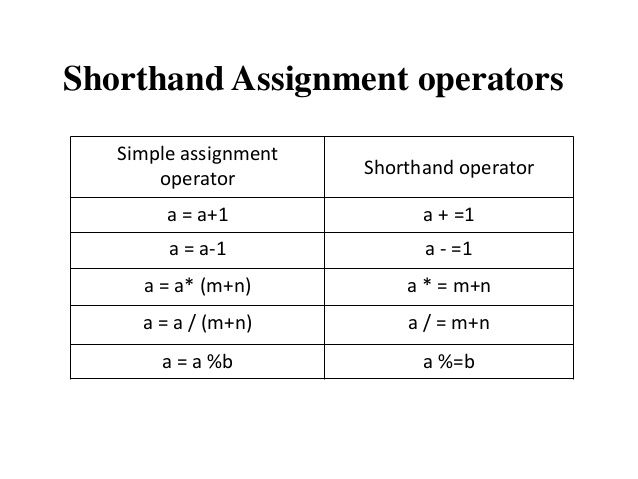
              7- Shorthand operator
              8- Conditional operator


A)  On The Basis Of Type Of Number Operands


1- Unary Operator -
These are the operator which operates upon a single operand.
Eg-  +5, +7, -6, -54.7, x++; y--   etc

2-Binary Operator -
These are the operator which operates upon two operands.
Eg-  5+7, 10-8, 15%3, x&&y, a||b   etc.

3- Ternary Operator -
It is the operator which operates upon three operands. It is also called Conditional Operator.
Eg- ?:  (Question mark and colon)


B)  On The Basis Of  Type Of Number Operands

1- Arithmetic Operator- 
This operator is used for the performing arithmetic operation in the Expression.


2- Logical Operator- 
This operator is used to combine logical expiration. It works on Control Statement.


3- Relational Operator-
This operator is used to determine the relationships among different operand.


4- Bitwise Operator- 
This operator is used as like gates. It works on mathematical Expression. 


5- Assignment Operator-
It is used to assign a value to a variable.
Eg-  x=5;

6- Increment and Decrement Operator- 


7- Shorthand Operator-
Is used to minimize code length.


8- Conditional Operator-
This operator is used like to select one thing from two things based on the situation.
It is also called Ternary Operator.


Tuesday, 11 September 2018

Data Type


Before goes to our Topic, Let's try to understand some basics ...

# KEYWORD 


  • The keyword is the predefined word and it has a predefined meaning.
  • we cannot use it for some other purpose.
  • all the keyword in Java is in a small case.
  • total 53 keywords in java.

Definition - "The Java programming language has 53 keywords. Each keyword has a specific meaning in the language. You can’t use a keyword for anything other than its pre-assigned meaning."


For Ex - 


Now ,
Data Type is also a keyword.
Total 8 Data Types in Java


Question - Suppose I have to store something in the program. Let Say I have to store age, So how I can store age in the program.????

Answer -  Whenever, we need to store something, we need memory. For that, we have to provide its size and type.

Providing size and its type, we have to declare a DATATYPE and to give the name of the memory location is called  VARIABLE.

So, VARIABLE - is the name given to the memory location where some value can be stored.
and
DATA TYPE - is means to identify the type of data and associated operation of handling it.


Now, Come to the question...

To do so, you have to think like... 
  • What I have to store?  ==> I have to story AGE
  • What type of DATA it is?  ==> Number(Numerical kind)
  • How Big Data It is?  ==> maximum 3 digits (Range of the data). 


In Java, We have Four Types Of Data
  • Character Type --> char
  • Numerical Type --> byte, short, int, long
  • Floating Point Type --> float,double
  • Boolean Type (Flag) --> boolean


As a programmer, You don't need to remember the range all the data type.
In Java, you have methods that will tell you all these.

just you have to learn Range Formula.
[WHERE - N SHOULD BE IN BITS]


For Example - 

For Byte -

-128  to  127


# Code 


public class DataTypePrgm {
public static void main(String[] args) {

// Integer
byte b = 10;
int i = 11; 
short s = 12;
long l = 129846;

// Double 
float f1 = 1.5f;
//or
float f2 = (float)2.5;
double d = 22.5; // Double

boolean bb1 = true;
boolean bb2 = false;

System.out.println(b+" "+i+" "+s+" "+l); 
System.out.println(f1+" "+f2+" "+d);
System.out.println(bb1+" "+bb2);
}
}


Question --  Why we are getting error " float f = 1.5; "?

Answer -- We have to write this ... because
by default float value is double literal, So to tell the compiler to treat it as float explicitly ---- we have to write it in below ways...

float f1 = 1.5f;  
//or
float f2 = (float)2.5;

Note - [ we can use  " f  " or " F "]


Class & Objects


Now, we are trying to understand the CLASS & OBJECTS...

Let's Take an Example, and Try to Understand it.

Suppose, You want a 10 Table & Chair for your Tuition Class
You just go to the near Carpenter Shop and said I want 10 Tables and chairs for my tuition classes.
So, They offer you a chair and asks you some questions about your table and chair requirements like-  size of the table (length and width), glass or wooden table, what about the table legs wooden or iron,
the colour of the table or leg, etc.
and he wrote down all the details in the piece of paper for remembrance.


and After 10 Days your Chair is ready .. Just go to the shop, pay the balance (Money) get all the tables and chairs.

Now,

The piece of paper (in that all the details are written about table and chair )  is called -- CLASS.

And

The real Tables and Chair That you receive after 10 Days is called -- OBJECTS.


 ********************************************************************************

One more STORY, To understand the concept better...

Hey, Friends!,  Meet my friend JONE.


First Name                      - Jone
Middle Name                  - Sonu
Last Name                       - Sena
Father's Name                 - Harish Sena
Mother's Name               - Sumitha Sena
Gender                             - Male
Qualification                    - B.Tech (CSE)
DOB                                - 12th - December - 1990
Height                              -  163 cm
Weight                              -  78 kg
Address                            - #45, 23/430 , Delhi
Contact No.                      - 8950XXXXXX
Working in                       -  XYZ MNC
Status                               - Un married
Bank Account Name         - ABC Bank
Bank Account Number    - 335957XXXXXX455

(like that Jone has many more Details/Properties ...)


Question - If you are a developer and you have to make a software for Bank, Tuition Insitute and Hospital to Know Your Customer, then what kind of details you are looking for?

Answer -

# For Bank

class KYC
{
Customer Name -
Customer Father's Name -
Bank Account No. -
Address -
Contact No. -
}

# For Tuition Institute 

class KYC
{
Student Name -
Father's Name -
Course -
Fee Status -
Address -
Contact No. -
}

# For Hospital

class KYC
{
Patient Name -
Father's Name -
Age -
Height -
Weight -
Problem -
Address -
Contact No. -
}


Question - Now, Question arise Which kind of information you have to write inside the class?

Answer - We have to write that information which is important for that application (it depends on the perspective of a viewer).
Jone has many properties but in a different application, we acquire (take) different kind of information, so it depends on application to application.


Definition Of A CLASS

A class is a templet where we describe the properties and behaviour of an object.

0r

A class is a collection of objects which similar properties and behaviour. 

0r

A class is a group of a common object. It is a user defined data type. It Contains variables and functions. The class defines all the common properties of the different objects that belong to them.
0r

A class is a blueprint or prototype that defines the variables and the methods (functions) common to all objects.

0r 

Class a template/blueprint that describes the behaviour/state that the object of its type support.


Definition Of AN OBJECT


*Object: It is the instance of a class. 

0r 

An object is a specimen of a class. Software objects are often used to model real-world objects you find in everyday life.

0r 

An object is nothing but a self-contained component which consists of methods and properties to make a particular type of data useful. Object determines the behaviour of the class. When you send a message to an object, you are asking the object to invoke or execute one of its methods.


# Syntax of class


For Example - 

class Fan {
// properties 
//and
// behaviour
}


# Syntax of Object

- It is a two step process...

1st Step -


For Example -  

Fan f ;


2nd Step - 


For Example - 

f = new Fan();


These two steps you can also do in a single line - By combining


For Example -

Fan f  =  new Fan() ;


Friday, 7 September 2018

Interrogation Of First JAVA Program


Class FirstJavaProgram
{
      public static void main (String [] args)
     {
               System.out.println("Hello World!");
      } // main
} // class


In Java Program EveryThing is a CLASS.

1- First we write class and class_name
2- main() method
3- method/function to display something to the screen

--> These three steps are needed to follow for understanding & execution of the program.


******************************************************

# Syntax Of CLASS


Accessibility_Modifier are -

  • public
  • private
  • protected
Modifiers are - 
  • final
  • static
  • abstract
  • many more (Will see all of them later)


class - class is a keyword. It should be written as it is. [all the keyword are written in small letters in java ]

Class_Name - Here "FirstJavaProgram"  is a name of the class.


******************************************************

Now, Main() Method


*This Is Very Important (It may chance to asks question on this in an interview room)
we will see this later when you are in a position to understand these concepts.
As of now I just introduce these words to you.

[Note - by heart this line (without this line you cannot run any program in java)]

public - is an access modifier.

static - is a keyword.

void - it is a DATA TYPE.

main() -

  • it is the name of main() a method. 
  • JVM is always looking for the main() method.
  • it is the parametrized method, it takes one argument of string type of array.
  • You can't change its name, if you want to do so - for that you have to customize your JVM and it is almost impossible. 

String [] args - String is a class in java and args is the name of string type array.


As of now, it is enough but still, you want to know more about " public static void main(Strings [] args) "

Then I am going to give you video link - that will help you to understand this line clearly.


 [ Video -public static void main(Strings [] args) == 1st part ]


 [ Video -public static void main(Strings [] args) == 2nd part ]


 [ Video -public static void main(Strings [] args) == 3rd part ]


******************************************************
Now, Output Stream


System.out.println(); - helps to display something on the screen.

System - is a class. (I told you before every thing in java is a class)

out - is a static variable.

println() - is a method of System Class.  


As of now, it is enough but still you want to know more about System.out.println();
Then i am going to give you video link - that will help you to understand this line clearly.


[ Video - Explanation about System.out.println(); ]


******************************************************

Now, Comments 


  • Comments are something that is unreadable in java.
  • it is used to increase the readability of the program.
  • Java Compile ignores it.
  • Two Types of Comment in Java
    • Single Line Comment
    • Multiple Line Comment
    • Documentation Comment
// double forward slash used for single line comment


/*

* this is used 
* for multi-line comment, 
* what every written inside these (  /*  _comment_   */  )  is never
* executed at all.

*/


/**
*  it appears in blue color
*  this comment is for other developers
* These comments have some "@" words
*  used for -- last modification date, developed by, modified by etc
*/


First Program and Execution Environment SetUp


Now, It's Time to write our first Java Programs ...

Question - Write a Program to display "Hello World!" in the console?
Answer -

Class FirstJavaProgram
{
      public static void main (String [] args)
     {
               System.out.println("Hello World!");
      } // main
} // class

[ Don't worry - I will explain the above program later (in next post) ]


But before that, We have to set our environment to run our code (Program).
There are two ways to do that...

1 - Using Notepad
2 - Using IDE (Integrated Development Environment)


# Using NotePad


A. Temporary
  1. Open cmd
  2. Write on cmd javac If java is not installed, "javac is not recognized as internal or external command, operable program or batch file".
  3. write on cmd set path=C:\Program Files\Java\jdk1.8.0_121\bin
  4. write on cmd javac you will find path is set

B. Permanent ( Recommended )
  1. Go to "my computer" properties
  2. Click on "Advanced system settings"
  3. Click on "Environment variables"
  4. Click on new tab of user variable
  5. write path in the variable name
  6. copy the path of bin folder
  7. paste path of bin folder in the variable value with Semicolon.
  8. click OK button
  9. the permanent path is set now.

[Video - How to set the path for Java Program]

Steps to run a program:-

1 - Open notepad (another text editor like Notepad++) 

2 - Copy paste above program (code) 

3 - Save your file as FirstJavaProgram.java on the desktop. (Note-save same name as class name and file name) 

4 - To make sure your file name is FirstJavaProgram.java, (not in FirstJavaProgram.java.txt), first choose "Save as file type:" All files, then type in the file name Hr.java. 

5 - Run Command Prompt.

C:\Users\somesh> cd Desktop

C:\Users\somesh\Desktop> javac FirstJavaProgram.java

C:\Users\somesh\Desktop> java FirstJavaProgram

You should see the program output: Hello World!  


[ Video - To run a program using Notepad ]


# Using IDE

Less time and effort: The entire purpose of an IDE is to make developing faster and
easier. Its tools and features are supposed to help you organize resources, prevent
mistakes, and provide shortcuts.

[ Note - Download anyone either Eclipse or Netbeans ( Free and Recommended ) ]


More Information For IDE & Download Links - Click here (Redirect to Different Website)


[Video - How to run above program in Eclipse IDE]